

What information architecture means for a website
Information architecture is the structural blueprint of a website that connects, labels, and organizes content so that users can find information with ease.
Here are the four components of information architecture for a website:
- Organization: This is how content is categorized and/or grouped; such as by topic, date, or name.
- Labeling: The different naming conventions that are used for headings, links, and categories.
- Navigation: Menus, paths, and links that users use to navigate your B2B website.
- Search: An internal search engine, for your website, that users can use to look up specific terms.
Before we go, here is an overview of the “information architecture vs sitemap” distinction:
- Information architecture is an abstract, primarily user-focused, strategy that defines how the contents of your website relate to one another.
- A sitemap is a diagram/document that visualizes this structure by listing all of the different pages that make up your website.
Three structural models and when B2B sites use each
The three structural models of website information architecture are as follows:
- A hierarchical model.
- A sequential model.
- A matrix model.
A hierarchical model is a top-down, tree-like structure that features broad parent categories. Each one of these broad parent categories branches out into smaller child categories that are more specific than the broad parent category.
A sequential model organizes content into a step-by-step order that forces users to complete one step before they can move onto the next.
A matrix model lets users access the content on your B2B website through multiple links, filters, and menus. This order is far less rigid and defined than the orders found in the two structural models clarified above.
Here is a B2B example of where each of those three models shows up:
- Many B2B websites rely on a hierarchical model for their product/service catalogs. Customers can move from a high-level product overview to the specific technical solutions this product offers.
- Many B2B websites use a sequential model for customer onboarding. This makes it easier for customers to navigate the process without becoming overwhelmed.
- Many B2B websites rely on a matrix model for the filtered resource library. This model allows customers to find resources that align with their unique intentions, rather than being railroaded to specific information.
Step 1: Audit and inventory the content you actually have
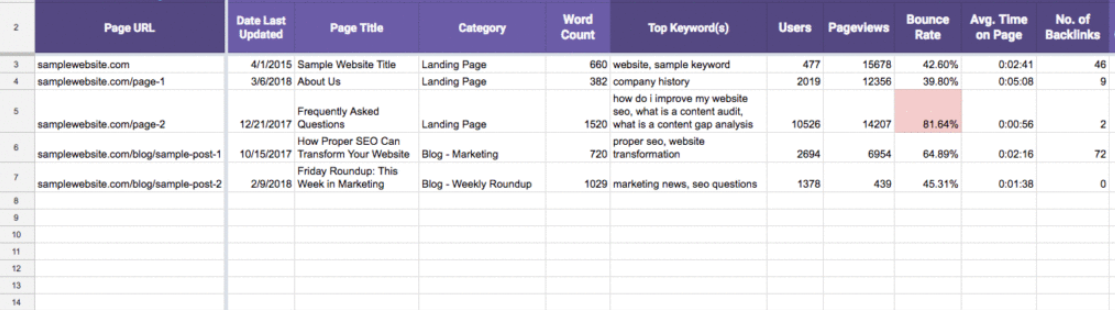
The first step is to audit and inventory the content you actually have. To do this, you need to build a comprehensive spreadsheet of your current website and the URLs that it features. Your spreadsheet should contain the following data points:
- The exact URL for each page.
- The title/H1 for each page.
- The content type for each page; blog post, landing page, and/or contact form, among other possibilities.
- The parent category that each page sits under; “Marketing Blog Posts,” for example.
- The top keywords for each page.
Right after you create a spreadsheet that features the above, you need to see how each page is performing. Use your analytics software to find the following:
- The pageviews and unique visitors for each page.
- The bounce rate and engagement rate for each page.
- The conversions/conversation actions taken on each page.
- The organic keywords that each page ranks for.
You should add this performance data to your inventory spreadsheet. Once this inventory spreadsheet has been completed, you need to look at each page, evaluate its performance, and assign it one of three decisions:
- Keep: If you have high-traffic/high-conversion pages that serve a clear purpose, you may want to keep them.
- Merge: If you have pages that focus on overlapping topics or contain very little content, you may want to merge them together.
- Cut: If you have low/zero-traffic, irrelevant, or outdated pages, you may want to cut them from your website.
Outside of the points clarified above, there is something else: your B2B website may feature pages that could be updated and greatly improved. You may want to keep them and, in doing so, edit them to better align with the needs of your website. It isn’t always a clear-cut “Keep, Merge, or Cut” decision.
Step 2: Group by how buyers look for things, not how the org chart looks
The next step is to group by how buyers look for things and not by how the organization chart looks. Before we go over how to do this, we need to discuss the latter point.
Your B2B website’s information architecture should not mirror the organization chart. Customers should not have to understand your website’s organizational structure to find the information they need. Developing your website’s information architecture around this chart will force them to do so.
With that out of the way, you can group your B2B website’s information architecture by how buyers look for things using a method called “card sorting.” Here is how it works:
- Invite your customer-facing staff to use a collaborative digital whiteboard tool that features sticky note-like menus. Miro is one such tool, and so is FigJam; there are many others, though.
- Put all of the different products, features, and resources you offer onto digital sticky notes. Make sure there is only one product, feature, or resource on each digital sticky note.
- Ask your customer-facing staff to organize these digital sticky notes based purely on the questions that customers ask them. This allows you to understand customer intent and how to organize your B2B website.
The above is a lightweight version of card sorting. You can also invite customers, instead of customer-facing staff, to organize your products, features, and resources by doing one of the following:
- Having customers organize your products, features, and resources into categories that they make.
- Having customers organize your products, features, and resources into pre-defined categories you make.
Beyond card sorting, you should also think about using the following categories to organize your B2B website’s content:
- By role: You can group content by functions and job titles. Such as “For project managers” or “For outreach specialists.” This allows specific user personas to find what they need.
- By use case: You can group content by the problem it solves and a specific use case that aligns with this problem. Such as “Automating Email Outreach” or “Securing Cloud Data.”
- By industry: You can group content by the industry it belongs to, such as “Finance,” “Marketing,” and many others. This demonstrates expertise and helps customers, from those industries, find what they need.
Every one of the categories above can serve as an information architecture template. You can use them to develop your sitemap and navigation labels; among other information architecture website facets.
Step 3: Label for clarity, then test the labels
The third step involves labeling your B2B website’s navigation choices for clarity. Here are three best practices for creating these new navigation labels:
- Use everyday language and avoid internal jargon, acronyms, or references to your organization’s internal structure.
- Rely on quick, descriptive phrases that customers can scan, and understand, almost immediately.
- Use very specific language that tells customers exactly what they will receive when they click on a particular menu, link, and/or button.
Create new navigation labels that align with those best practices and, then, test them using a quick tree testing method:
- Give customers very specific tasks, such as “Find our subscription policy.”
- See if they click the correct menu-label in a text-only, hierarchical outline - resembling a tree-like sitemap - of the categories and subcategories of your B2B website.
- If they do so, that is a good sign. But, if they don’t, fix the confusing labels.
Step 4: Draw the sitemap and decide what is static and what is a collection
Drawing your sitemap means deciding which pages are static and which pages are collection pages. Here is how to make that determination:
- Static pages are unique, standalone pages that must be updated manually after you make changes to the content. Your “Homepage,” “Privacy Policy,” “About,” “Contact,” and “Pricing Page” should, in most cases, be static.
- Collection pages are content databases used for repeating patterns. You only need to design one template page and Webflow generates new pages for each item that is added to the collection. Blog posts, product pages, testimonials, team member pages, and case studies should, in most cases, be collection pages.
To structure your collection pages properly, within your B2B website’s information architecture, you should keep the following in mind:
- A collection page template only needs one design and it only needs to be designed one time. Take the time to carefully lay out a structure, style, and set of data bindings that serves your customers.
- Webflow takes text, links, and images, from the collection, to populate each collection URL automatically. This makes the process a lot faster and is why users make use of Webflow collections.
Webflow uses folders to organize the pages on your B2B website and to clean up the URL architecture that comprises your website. These things are good for SEO and part of site architecture SEO. Here is how it works:
- Folders exist as the parent category for specific URLs. For example, all of your “product pages” could be housed within the “product pages” folder. These folders group related pages together.
- Slugs serve as the unique URL identifier for a specific page. For a blog with the URL “/blog/how-to-manage-projects,” “how-to-manage-projects” is the slug. This organizes your URL structure.
Every page within a Webflow collection is placed into a folder that matches the name of this collection. This means that a collection named “Blog Posts” will automatically group all of the pages, within the collection, under the “/blog-posts/” URL and its associated slug.
Here is one example of what a sitemap looks like after it has been drawn:
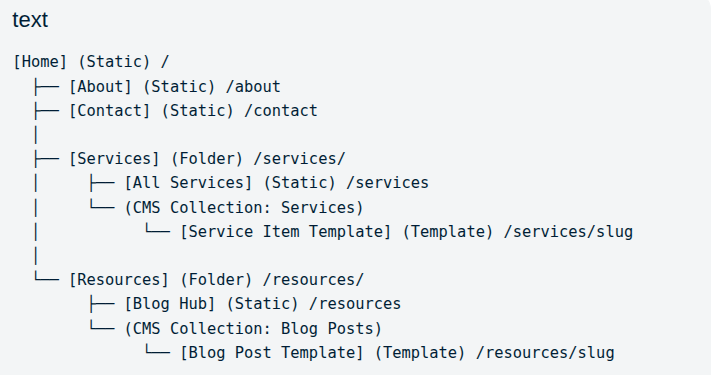
In the sections below, you can find three information architecture website examples. These are information architecture diagrams that demonstrate how a sitemap can be set up.
Sitemap example 1: a 40-page B2B SaaS site
Our first information architecture website sitemap example is a 40-page B2B SaaS site:
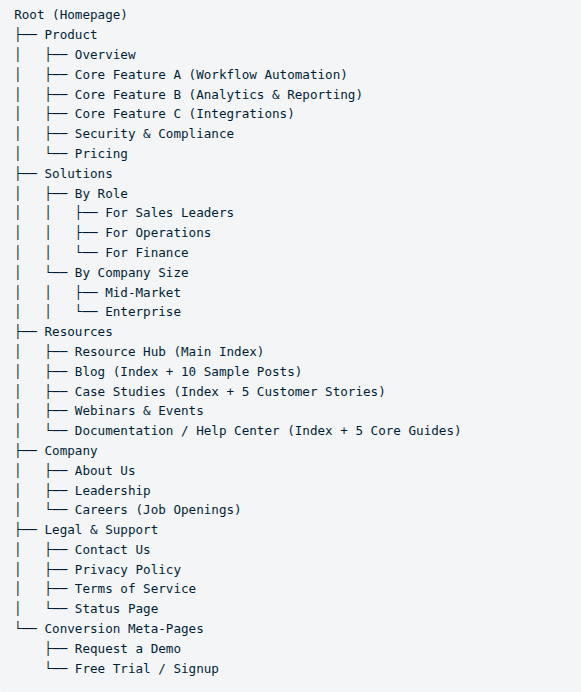
Here are three useful choices you can find within this sitemap:
- “Request a Demo” and “Free Trial/Signup” are featured in the main navigation. Doing this ensures that ready-to-buy prospects can obtain your SaaS product quickly, without being forced to waste time finding those pages. If they can’t find these pages very easily, they may leave your site.
- “Solutions” is its own category tree; it is not grouped under the “Product” category tree. Customers often approach B2B websites with different mindsets: end-users want to know what products you offer while decision-makers want to see if you offer something that solves problems associated with their role.
- The “Resources” category tree encompasses many different information resources. Putting all of those resources under one tree makes it easier for people to find the information they need without having to spend too much time navigating to the other sections of your B2B website.
Sitemap example 2: a professional services firm
Our second information architecture website sitemap example is for a professional services firm website that also has 40 pages:
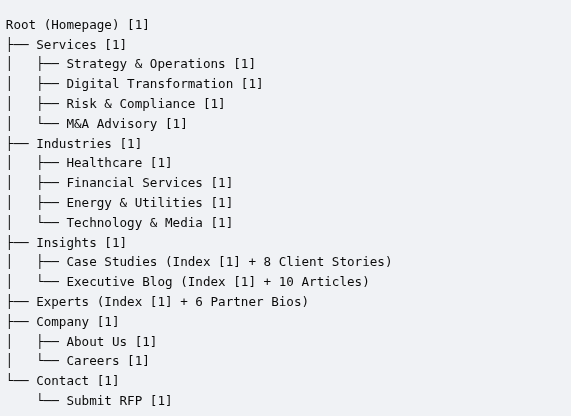
Here are three useful choices you can find within this sitemap:
- A clear distinction between “Services” and “Industries.” “Services” are used to define what this firm can do on a technical level. “Industries” is used to show customers that this firm understands the contexts, regulations, and needs of a particular industry.
- Developing individual “Partner Bios” for the “Experts” that run the firm. Many professional services clients are looking for people they trust to deliver a particular service. It isn’t just about the product; it is about the professionals delivering this service and whether or not they can get the job done.
- Creating a dedicated “Submit RFP” page within the “Contact” category tree. Most professional service contracts are acquired through formal procurement processes. Offering a secure platform for these proposals makes it easier for high-intent leads to reach the people running this firm.
Sitemap example 3: a multi-product company
Our third information architecture website sitemap example is for a multi-product company that, like the prior examples, features 40 pages:
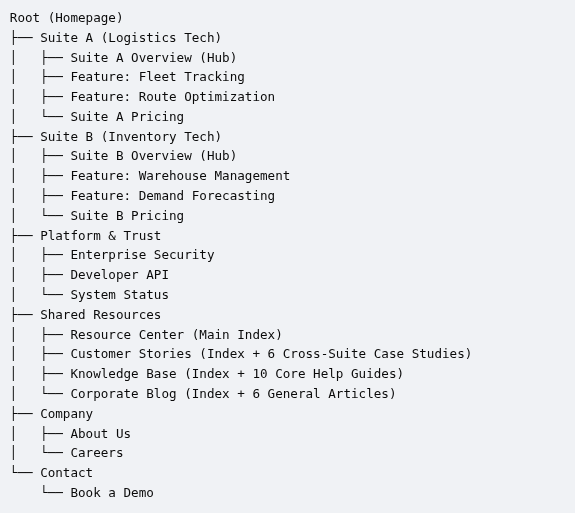
Here are three useful choices you can find within this sitemap:
- Using the “Shared Resources” category tree to group information resources, instead of placing all of those sub-categories into their own trees. This exposes customers to the capabilities of each product and the different problems this company can solve.
- Putting the key security features, for every product, under the “Platform & Trust” category tree. This demonstrates the company’s adherence to security and the fact that all of their products share the same high security standards.
- Using two different “Suites” to house the various products this company sells. Multi-product companies often serve different industries. Using the “Suites” category tree allows customers, from a particular industry, to see only the products/features meant for that particular industry.
Planning for growth without breaking the structure
Your information architecture should be concise. And yet, there should be room for new products, content clusters, and localization. Here are three ways to do this:
- Use relatively broad top-level navigation terms that lend themselves to growth, as opposed to very specific terms. A term like “Resources” lends itself to growth. But, a more specific term may not lend itself to further growth.
- Rely on dynamic landing pages and sub-menus to host specific B2B product lines. These pages and menus can grow, as you add more products, content clusters, and/or further localization.
- Do your best to group your B2B offerings by “solutions.” Such as the use cases, industries, or people they are for; among other possibilities. And, also, group your offerings by “Products.” If you create new products, they can easily fit into those categories.
If you want to learn more about growing your website, you can click here to read our “pillar page” guide. For B2B SEO strategy, you can read this guide.

