

What a pillar page is
A pillar page is a comprehensive piece of long-form content that provides a broad overview of a main subject while linking to detailed subtopic pages.
Every pillar page is made of three core components:
- The overview is a high-level introduction that succinctly covers the main themes of a broad topic without going into too much detail.
- Jump links serve as an on-page table of contents that allow users to click on the title of the section they want to read and be brought to that section without having to scroll down manually.
- Internal links are embedded within a pillar page and these links send users to subtopic pages that expand on a particular topic in the pillar page; these subtopic pages also contain links that go back to the pillar page.
B2B SaaS teams use pillar pages to achieve two things: to prove their topical authority to the search engines that index their pages and to help their users understand the complex subjects their B2B SaaS team interfaces with.
Right before we move on, there is one more thing: a pillar page is very different from a landing page. A pillar page is a comprehensive piece of long-form content that is built for SEO, topical authority, and education. A landing page is a short, brief page that is built around a single buyer conversion action, such as signing up for your product.
Three types of pillar pages and which one B2B sites usually need
Pillar pages can be very different from one another. But, even though this is the case, most pillar pages fall into one of the following types:
- 10X content pillar pages.
- Resource pillar pages.
- Product/service pillar pages.
Other types of pillar pages exist, but those three tend to be most effective. You can find three pillar page examples, for each of these three types of pillar pages, in the sections below.
10X content pillar pages
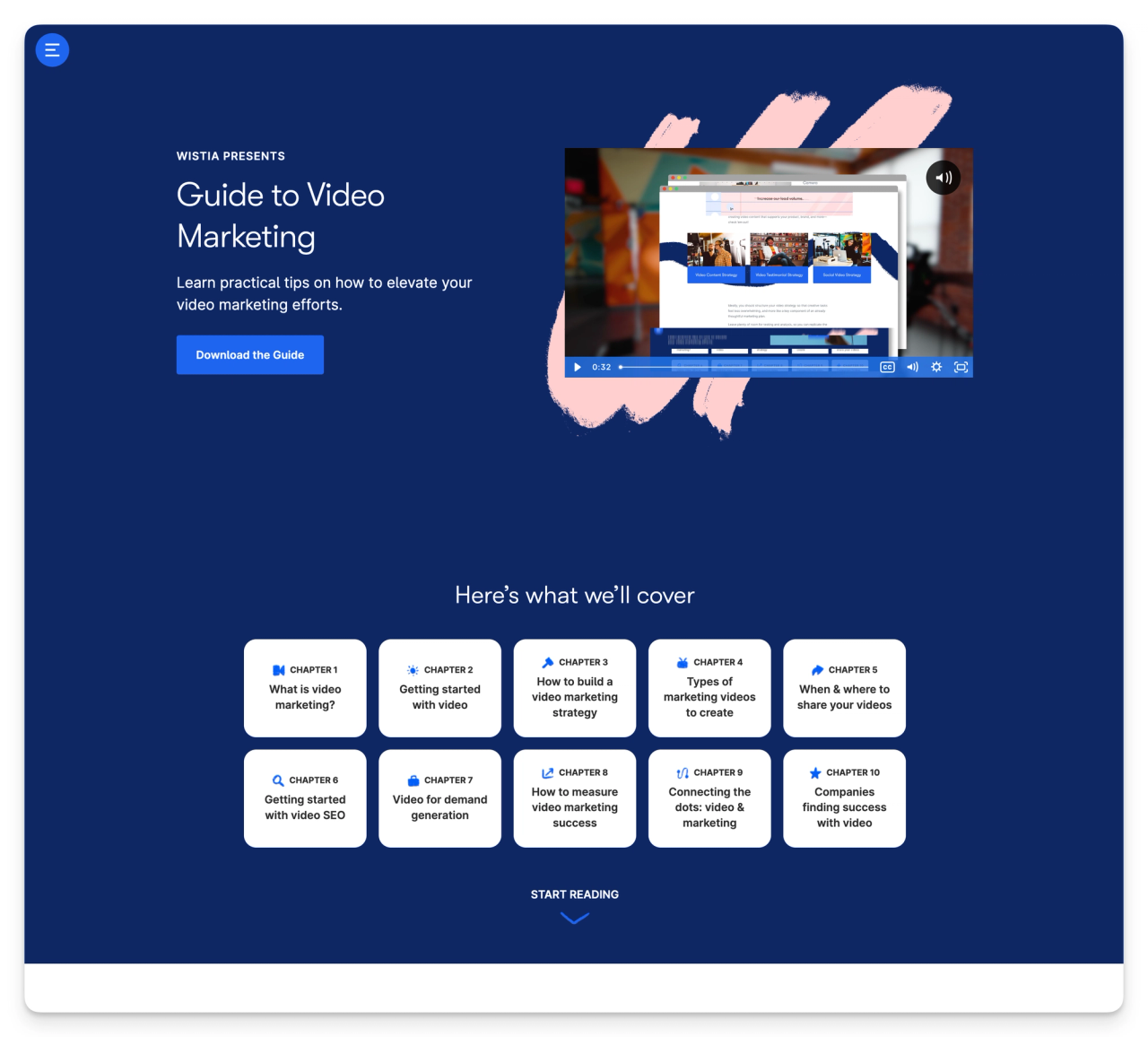
A 10X content pillar page is a pillar page that contains a comprehensive, long-form guide that is meant to be 10X better than competing pillar pages. Unlike other pillar pages within the same niche, these pillar pages contain a lot more high-quality information, rely on broad informational keywords, and build top-of-funnel traffic.
You can find a full-page screenshot of Wistia’s “Guide To Video Marketing” in the space below. This is one example of a 10X content pillar page; a page that offers far more high-quality information than any other page targeting the same keywords, the same broad-overview keyword, and the same buyers.
Resource pillar pages
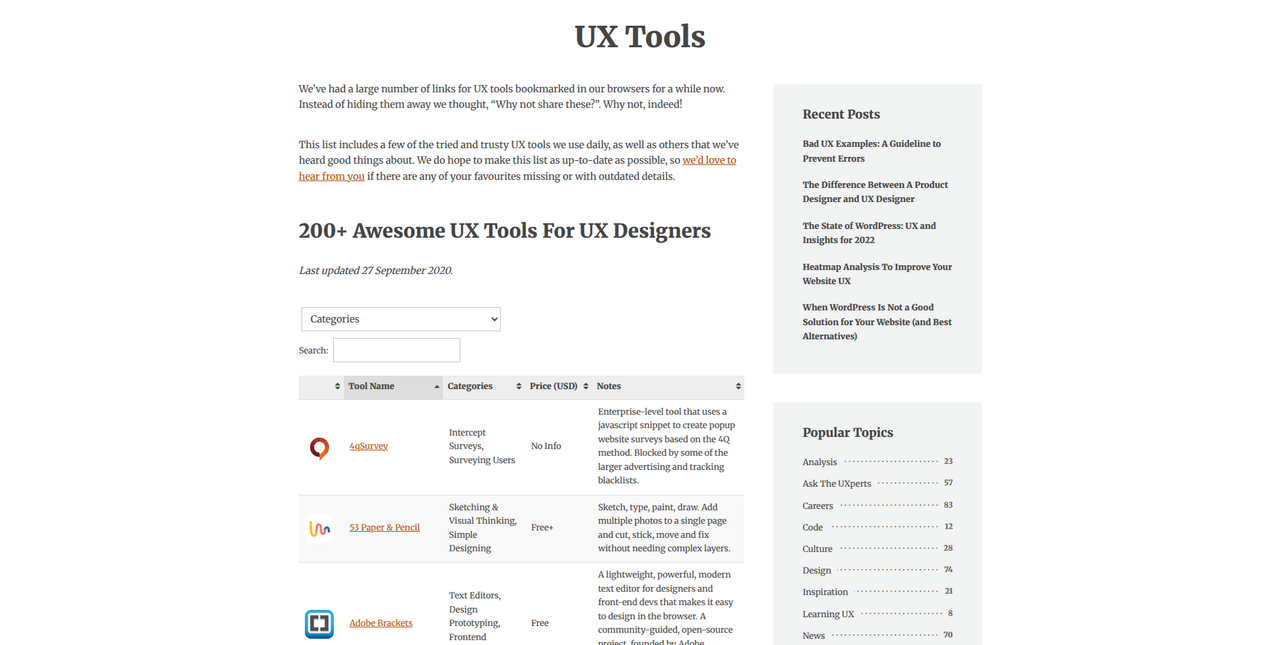
A resource pillar page is a curated set of libraries and/or directories that organize specific internal links, external links, downloads, tools, and/or guides. Each one of the items within this library/directory is organized around a specific theme that relates to your product.
You can find one screenshot of UX Mastery’s “UX Tools” resource pillar page in the space below. This page contains over 200 internal/external links, all of which do two things: affirm UX Mastery’s topical authority within the UX space and give their UX designer users valuable tools that will make UX design easier for them.
Product/service pillar pages
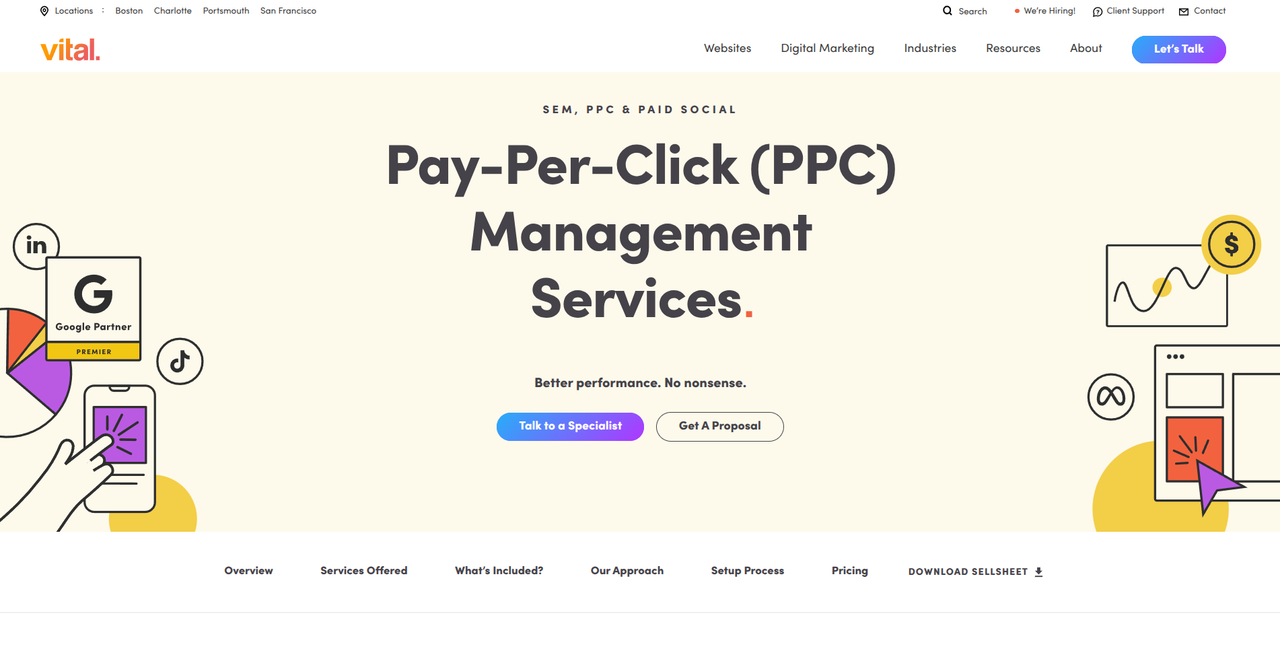
A product/service pillar page is focused on just one thing your business offers. This could be your main product, a service adjacent to this product, or something else. This page outlines the features, benefits, use cases, and most frequently asked questions regarding your product. Pages of this sort also link to case studies and testimonials.
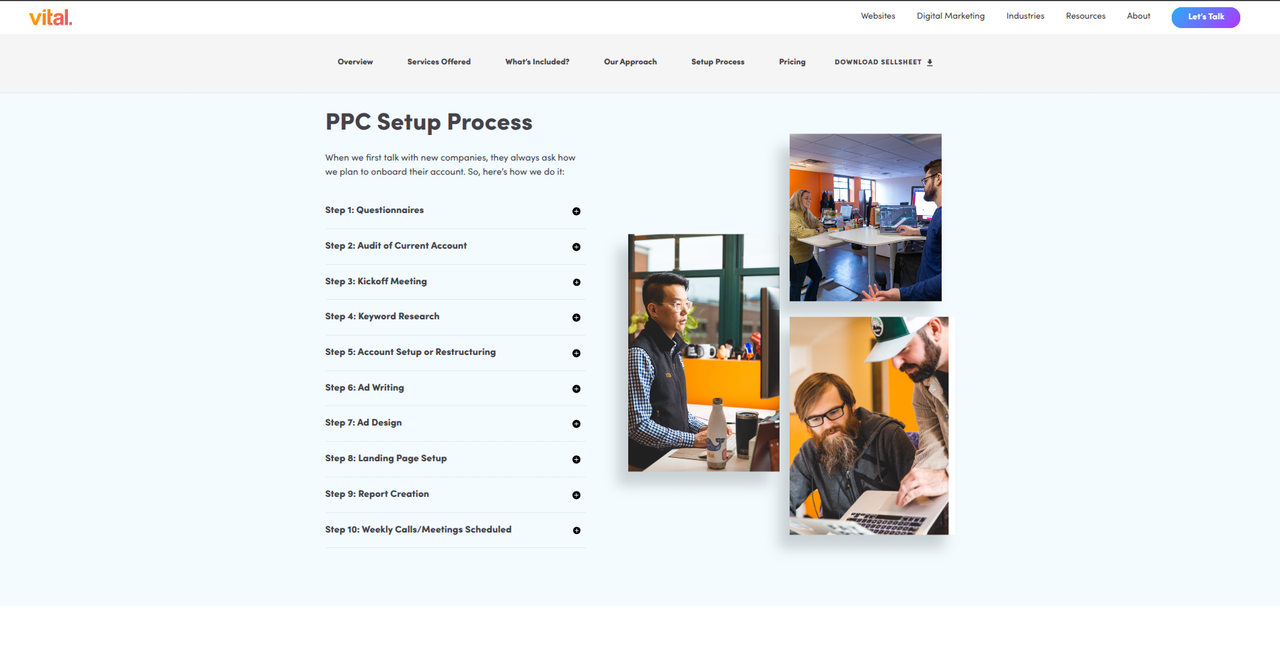
If you scroll below this paragraph you can find two screenshots of Vital Design’s “Pay-Per-Click (PPC) Management Services” product/service pillar page. This page goes over the features, benefits, use cases, and FAQs regarding this product. That is not all, though: it outlines the set-up process and ends with a call-to-action.
Which ones B2B sites usually need
If you run a B2B site, you need product/service pillar pages. These pages help buyers understand your product/service and why they should purchase/subscribe to it. This aligns with the commercial intent behind your product/service and your overall revenue goals.
The most successful B2B sites do not rely solely on product/service pillar pages. They also rely on 10X content pillar pages and resource pillar pages. 10X content pillar pages attract prospects that are researching a problem and resource pillar pages affirm your authority to buyers/search engines.
If you run a B2B site, you need product/service pillar pages. But, a hybrid approach is best: use product/service pillar pages for your products/services, while developing 10X content pillar pages and resource pillar pages to assist your buyers and assert your topical authority within the search engines buyers use to find your products/services.
How a pillar page should be structured
Every pillar page needs a comprehensive structure that guides buyers through the complex topic that is being explored within the page.
Here is the on-page structure that every pillar page should rely upon:
- An introduction that frames the topic: your introduction should briefly, but succinctly, define the topic that is being explored within the pillar page, explain why it matters to the buyers reading this pillar page, and specify what buyers will learn by reading this pillar page.
- A section per subtopic with a link to the cluster article: every subtopic should have its own dedicated section. If you are going to explore a new subtopic that relates to the main topic, this subtopic should be in a unique section. Buyers should be able to reach this section using jump links.
- Jump links: your B2B pillar page should contain a table of contents. This table of contents should reflect the structure of the page and contain links that “jump” to the subtopic section linked within the table. For example, clicking on the “Payment Providers” link should bring buyers to that pillar page section.
- A consistent pattern per section: every section within your B2B pillar page should contain a consistent pattern. This pattern should contain an H2 heading, a few paragraphs that serve as an overview of the topic, some kind of visual anchor, and a call-to-action.
Each one of these elements serves as a pillar page template.
You can find a full-page screenshot of Qualtrics’ “What is brand awareness and how do you build it?” pillar page in the space below. It shows the on-page structure clarified above.
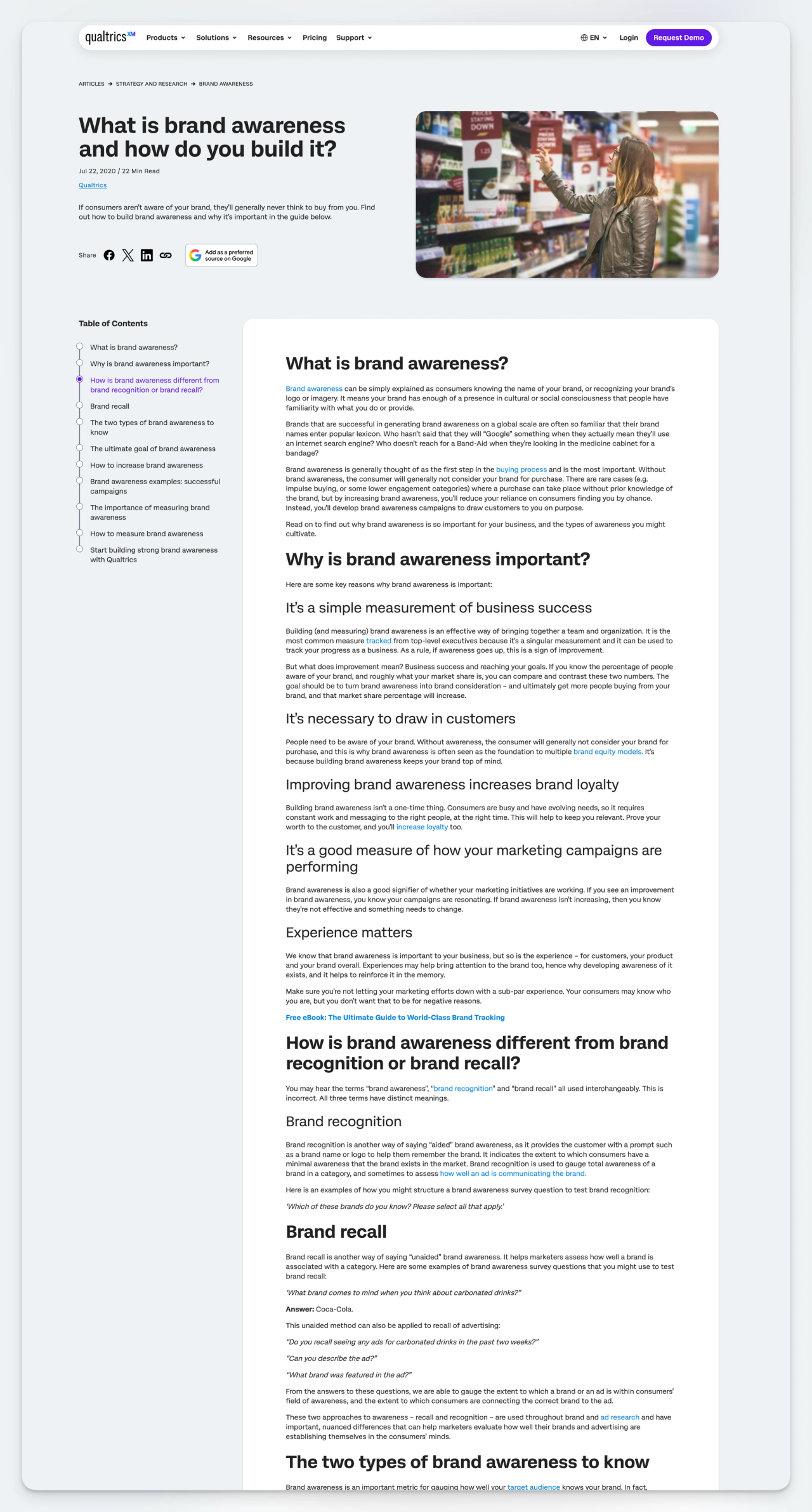
At the top, you will see an introduction that frames the topic. On the left, you will see a sticky table of contents that serves as the “jump links” part of the structure.
In the main column, you will see a section per subtopic. Each section follows the same pattern: an H2 heading, a few paragraphs of overview, and supporting subheadings.
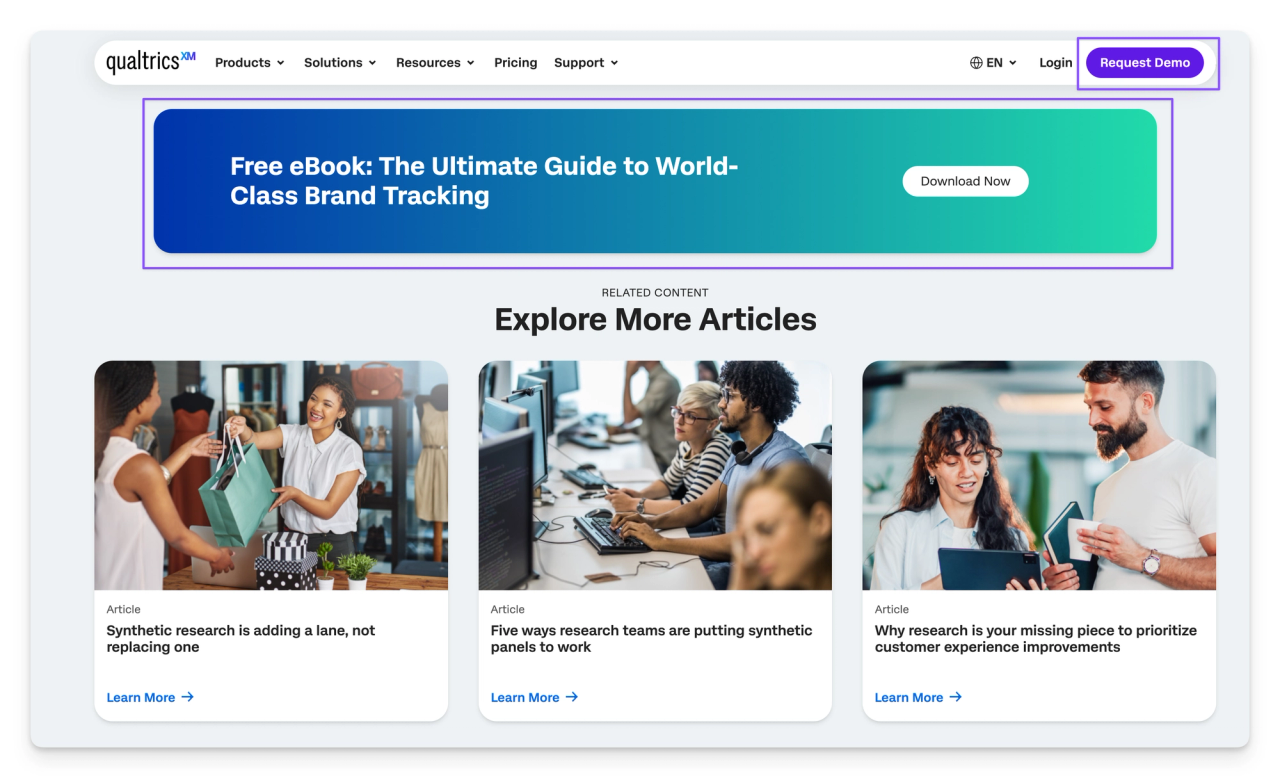
Qualtrics handles the call-to-action in two places: a persistent “Request Demo” button in the navigation, plus a content download CTA once you reach the end of the article. You can see both in the screenshot below.
If I had one criticism, it is that the downloadable content CTA only shows up at the end. It should also have a persistent CTA tile under the sticky table of contents. A related content download, gated or not, is a great way to increase engagement with a pillar page. That engagement signals that the page fulfills buyer intent, which helps prevent pogo-sticking and gives users a natural answer to the “now what?” question they often have on a pillar page.
Modeling the pillar and cluster in Webflow CMS
Developing a pillar page and cluster article structure using Webflow CMS requires modeling a pillar content strategy and a content cluster strategy. You need a dynamic architecture that handles relationships automatically, which requires making use of several different Webflow CMS features.
To develop the collection architecture and the fields for your website, you need to do the following:
- Create two core collections: one should be named “Pillars” and one should be named “Articles.” The “Pillars” collection will house your pillar pages and the “Articles” collection will house sub-topic articles.
- Give each pillar page a unique name, an auto-generated slug, and some kind of hero image. Give each article a unique name, an auto-generated slug, and a pillar reference that connects it to a parent pillar page.
- Regarding the pillar references for articles, you can also develop a multi-reference field that connects one article to other relevant articles and more than one pillar page. This is optional, but it can be useful.
Just for reference, here is a screenshot of a Webflow collection schema:
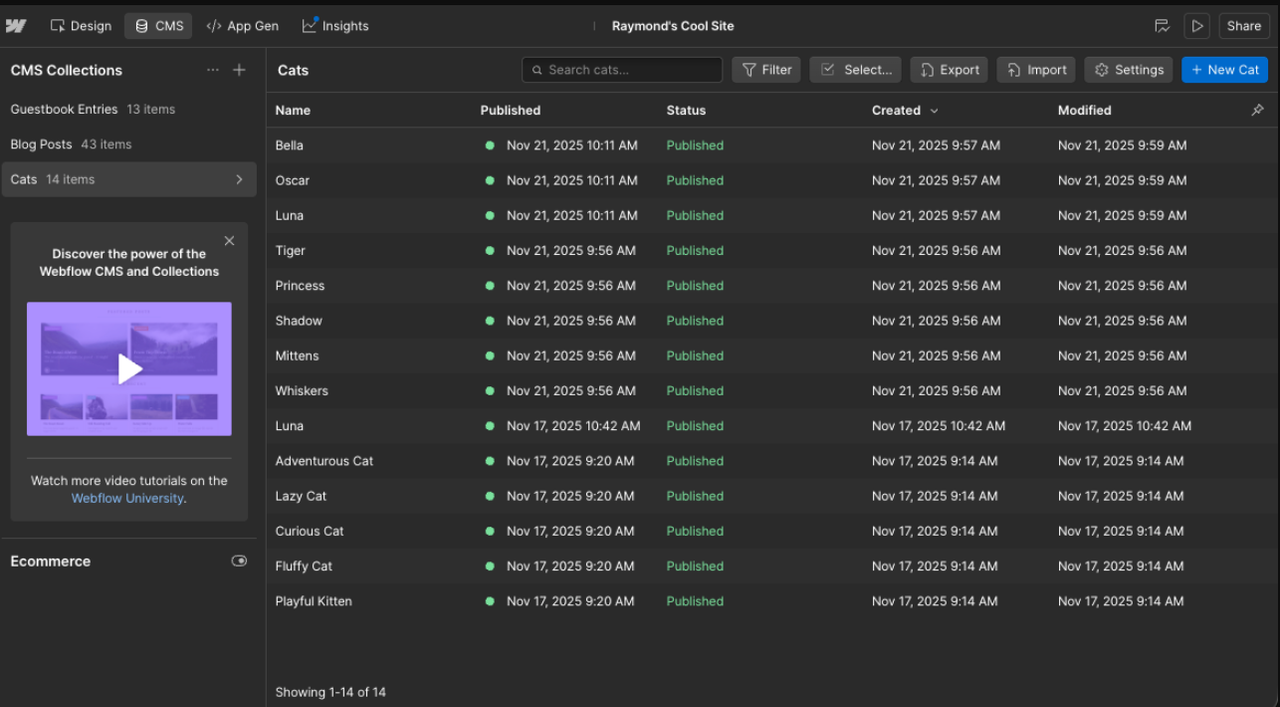
Instead of the collections seen on the left, your CMS Collections will include “Articles” and “Pillars.”
Before we move on, here is a screenshot of the Webflow CMS’s reference field settings:
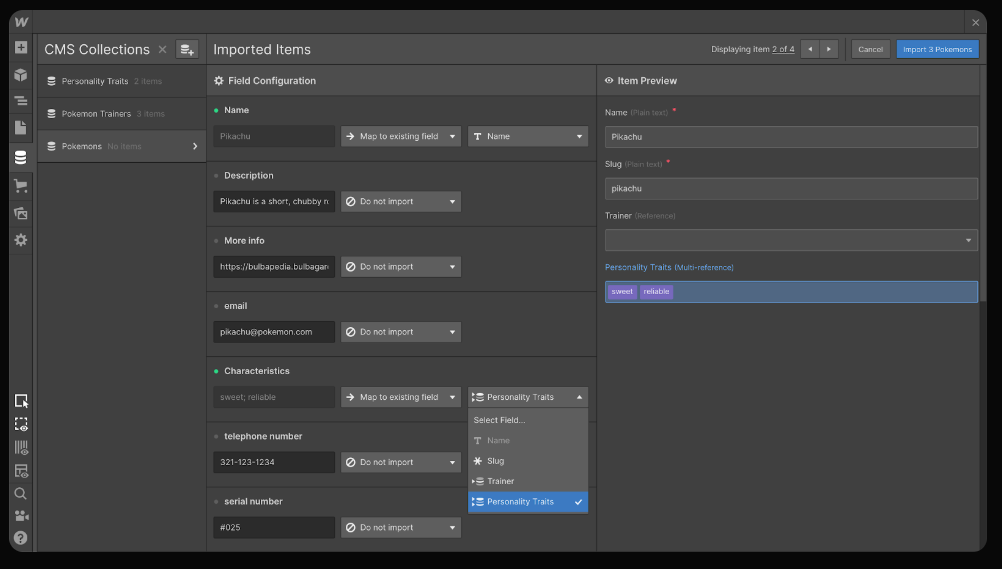
Right after you develop the collections and fields clarified earlier, you can make use of Webflow’s Template Pages feature to expand on these collections:
- Develop a hero section/design and core overview text for each pillar page. Map this hero section/design and core overview text to the “Pillars” collection fields. Webflow’s “Template Pages” feature can use this to automatically generate layouts for each pillar page.
- Insert a “Collections List” that is connected to your “Articles” collection. Set a filter on this “Collections List,” such as “Pillar Reference equals Current Pillar.” Doing this ensures that each pillar page will only display cluster articles that belong to that specific pillar.
- For the “Articles” template pages, add a text link to the top of each article in the collection. Map this text and link to the “Pillar Reference” field. And, then, insert a Collection List that is bound to the “Related Articles” field. Use this Collection List to demonstrate hand-picked content adjacent to each article’s topic.
Before we conclude this section, here is a Webflow note on why CMS references beat manual links: Webflow’s CMS references get rid of broken links, automates the internal linking architecture your website relies upon, and also allows you to update your entire site structure in seconds within the Webflow CMS dashboard. Manual links, in contrast, are far less convenient and considerably more cumbersome.
Building the pillar template so cluster links populate themselves
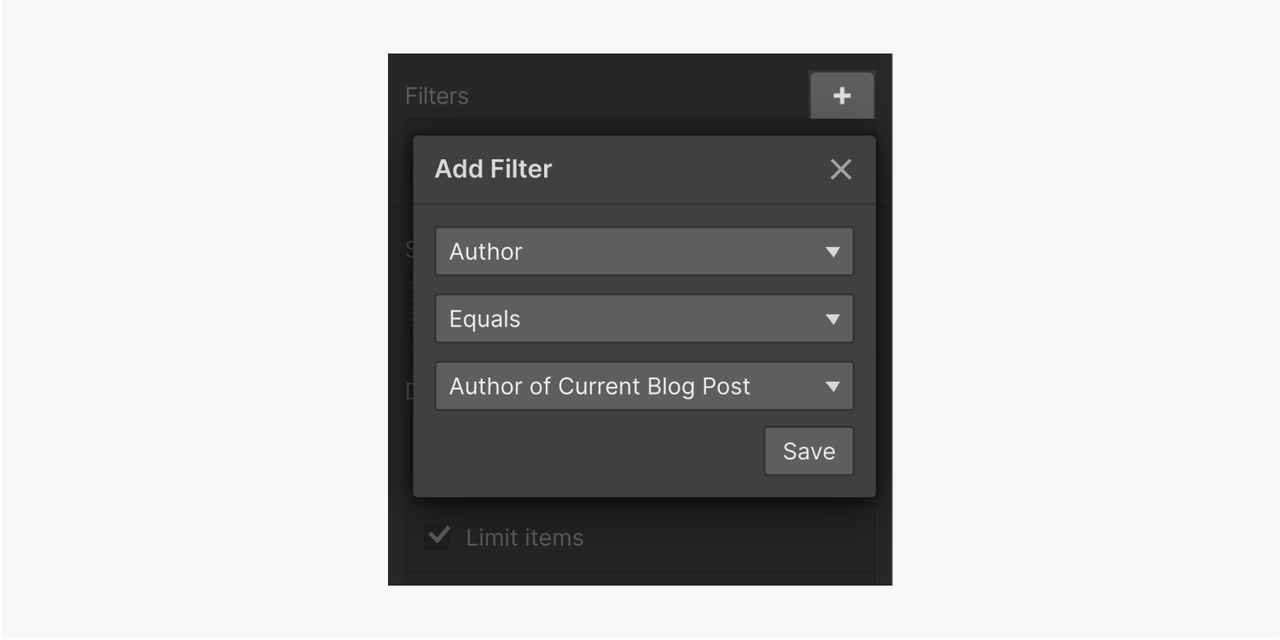
You can use Webflow to build your B2B website’s pillar page template in a way that allows cluster links to populate themselves. To do this, you need to set up the collections outlined in the prior section. And, then, you need to go to your “Pillar Pages Template Page.” When you are on this page, you need to do the following:
- Place the “Collection List” element onto the pillar page template and on the spot where you want the sub-topics/cluster links to appear.
- Go to your “Articles” collection and add articles, from that collection, to the “Collection List” element you just added to the pillar page template.
- To ensure that only articles belonging to a specific pillar appear within that collection list, click “Collection List Wrapper,” go to the “Settings Panel,” and add this filter: Parent Pillar Equals Current Pillar.
- Within the same “Settings Panel,” add a “Sort Order” for this collection list element. Your sort order could be “Published Date,” “A To Z,” or “Newest To Oldest”; among other possibilities.
Right after doing that, you can set up your pillar page template so that each cluster article links back to the pillar page it supports. And, to set this up, you need to:
- Open your “Articles” collection template.
- Develop a new reference field, within this template, for “Pillars.”
- Link each cluster article, within the “Articles” collection, to its respective pillar page.
- Place a “Link Block” or “Text Link” element into the space, in your article, where backlinks should appear.
- Select the link, go to the “Settings” panel, and enable “Get URL” from your “Pillars” reference field.
- Bind the pillar page link, for that article, to the link for the pillar page that article supports.
Internal linking rules that hold up as the cluster grows
Your B2B website cluster will grow as the site expands. To ensure that your internal linking rules hold up, as your cluster grows, you should follow the rules clarified below.
Contextual links within the body copy
You need to make sure that every cluster article links back to its parent pillar page. To ensure this happens, you can add a standard “Link Block” or text link directly below/above your Rich Text element on your “Articles” CMS template page. Bind this link to the “Parent Pillar” reference field.
Using automated link blocks
As your website grows it will be harder for you to manually update the menus. To create self-updating hubs, you can use Webflow’s Collection Lists to drop a “Collection List” element connected to your collection of articles. Filter the list using these parameters: Parent Pillar Equals Current Pillar. This ensures that, every time you add a new article to a pillar page’s cluster, Webflow’s CMS will place it inside of the pillar page that article belongs to.
If you want to learn more about this, you can click here to read our information architecture article.
Automated breadcrumbs
Breadcrumbs establish a hierarchical path for search engines and the buyers who find your site using those search engines. You can build these breadcrumbs, using Webflow’s CMS, by creating a horizontal DIV block, a static link that takes buyers to the “Home” page, and dynamic text bound to the “Parent Pillar” reference field that links to the current article’s parent pillar page. This breadcrumb trail can scale indefinitely, and consistently, while your website continues to grow.
If you want to learn more about this, you can click here to read our B2B SEO strategy article.
Avoiding orphan articles
Orphan articles are pages with no incoming internal links, making them essentially invisible to search engine crawlers. You can make your “Parent Pillar” reference field a “Required” field in your Webflow CMS settings. Content editors will be unable to publish a particular article until it has been assigned to a specific pillar page, ensuring that each article has internal links.
Measuring whether the cluster is working
To measure whether your cluster is working, you should regularly assess the following:
- Pillar page rankings: keep track of the main keyword positions. If your pillar page is slowly inching to page one of Google’s search results, that is a good sign the cluster is working. But, if it isn’t, you may need to rethink your cluster.
- Cluster article impressions: use Google Search Console to see if your articles are getting more and more impressions. If they are, this usually means that Google recognizes your topical authority.
- Internal click paths in Analyze or GA4: look at navigation flows in HubSpot Analyze and/or GA4 to see if buyers are going from your cluster articles to the pillar pages they support. If they are, this means your internal linking strategy is working.
Before we go, you may want to split a pillar page into two if you notice these signs:
- Users with different search intents, user personas, and/or search journeys are reaching your pillar pages.
- A pillar page has a very high bounce rate, possibly because the page contains too much information.
- Certain articles begin ranking for a broad keyword, suggesting that this article may need its own cluster.

